ROAD TEST
1 Dec 2025
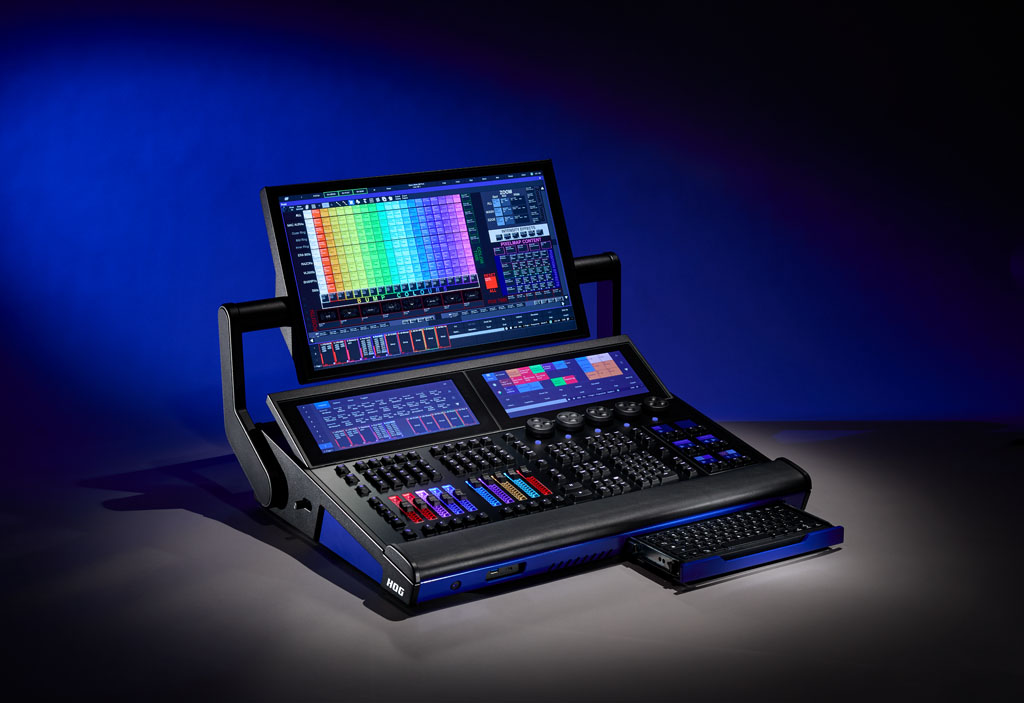
ETC Tour Hog
Subscribe to CX E-News
I’ll admit at the outset that I am a long-term Hog user. I have always found the Hog system quick and easy to get up and running; you’re never wasting time setting the console up before you can get into the actual lighting side of things. I feel that Hog doesn’t get in the way of what I’m trying to do. Other consoles have too many menus and too many button presses to get into things that are hidden, and I feel they negatively affect what I’m trying to achieve. Once you’re ingrained in a workflow that works for you, it doesn’t make much sense to change it!
Tour Hog
While I’m already familiar with Version 5 of the Hog software, introduced on the Version 4 hardware, I recently got a new Tour Hog to take out on two gigs. I was lighting Missy Higgins at the Wanderer Festival at Pambula Beach, NSW, and again at Night at the Barracks Festival at North Head Sanctuary in Manly.
Wanderer Festival’s rig was fairly small scale and included mostly generic fixtures, while Night at the Barracks was a Chameleon-supplied rig with a bunch of Ayrton Diablos, Martin MAC Auras, and a couple of Martin MAC Vipers; a much more sizeable rig.
As I was filling in for Missy’s regular lighting operator, Kate Hall, and because they were two very different rigs, I ended up mostly busking both shows. I did have some video elements pre-programmed, along with colour combinations for each song, and then I built around those. Even though this hardware was new to me, I was up and running quickly and easily, as is standard with Hog.
Preparation and Remote Control
I have a Hog PC set-up at home, and I did all of my pre-programming on that. On site, I use an OSC remote for focusing. The Touch OSC software, which you can use on iOS or Android, sends OSC commands to Hog. ETC have Hog OSC templates available for download on their site, and you just get them onto your device and open them in Touch OSC. Bingo – you now have a remote!
Hog 4 to Tour Hog – The Learning Curve
In terms of the software, there are some minor cosmetic differences. Hog made most of the major changes in the last few versions of the 4 software. When it upgraded to 5, it was already a stable platform that was proven. The major difference is with the actual hardware.
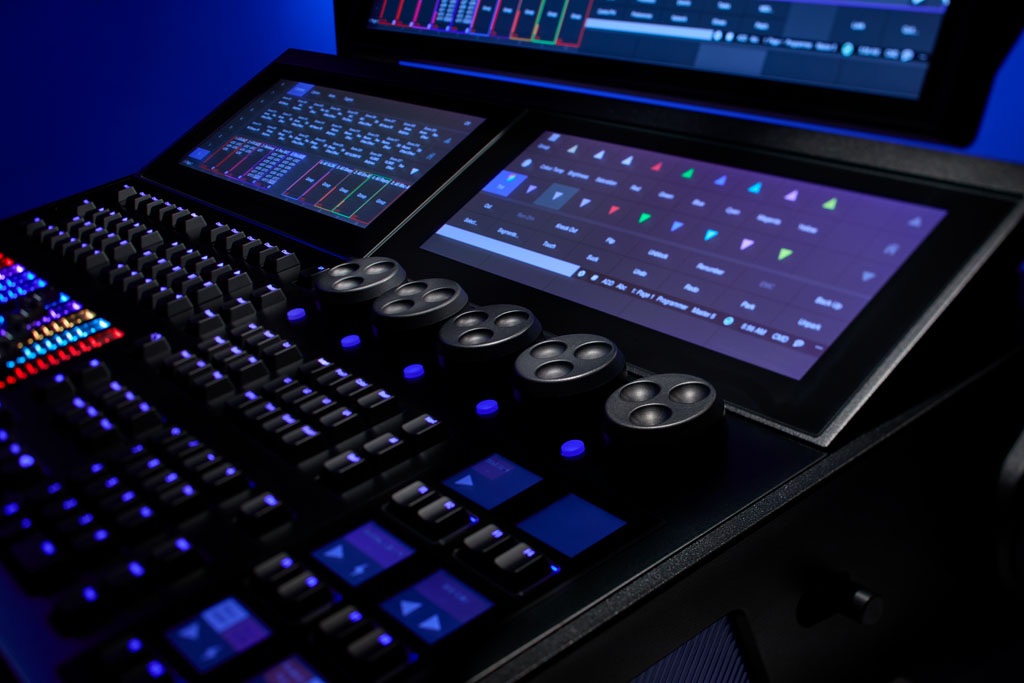
The trackball and cursor keys long-term Hog users know well are no longer there.
The screens on the Command keys are now proper LCD screens, so they convey a bit more information. They’re also in a different layout; a four by three grid, rather than a three by four. User Keys are a new feature; they’re a set of four keys that can be mapped to many different functions in your preferences. For example, they could be set to intensity bumps or effect rates. That’s a big change.
In terms of replacing the trackball and the cursor keys workflow, you’ve always been able to scroll using Open and your encoders. I think the reason that they’re both gone is you can do a lot of the scrolling with the touchscreen using standard gestures.
The absence of the cursor keys is what I noticed the most while busking. It made me realise how much I was used to using them for editing cues. What I ended up doing was mapping some of the User Keys to be cursors. I also used to use the ring around the old trackball for scrolling through windows, but again, there are workarounds, and I’m retraining myself.
The biggest learning curve for me is the new colour engine, but that came in the 4 software over a year ago. It now makes use of multi-emitter LED fixtures in seven or more different colours, and incorporates that that into all your colour palettes. It translates quite well between those and your standard RGBs or CMYs. I was still getting the hang of some of this while working in the virtual space.

Physical
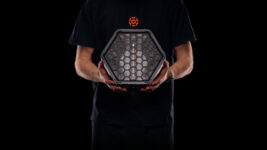
The way the new screen folds down on its own arm gives you a few more working angle options. The Tour Hog is nice and compact, especially considering it’s giving you 64 universes. In addition to EtherCON Ethernet connections, the Tour Hog also has opticalCON Duo fiber ports. More and more venues and production houses are starting to replace their Ethernet cores with fiber cores, so that now means you don’t have to have an adapter in your front of house rack.
The Tour Hog is quite light, which is welcome, but still feels solid and well-built. In addition to USB-A, it also has USB-C connectivity, which is quite handy, and you can run two monitors from them. Wi-Fi is built-in, so you don’t have to carry around a wireless access point.
Further Development
ETC and Hog always have a lot of continuous development happening in the background. I’m assuming they’re working on a few things, like the ability to import MVR and GDTF fixture profiles. That would be handy for plot views, and for when you come across a fixture you’re not familiar with.

Verdict
The Hog 5 software and the Tour Hog hardware are a great evolution. I think ETC and Hog have been approaching things in an intelligent manner. Making most of the major changes in software before they roll out the new hardware, so it’s not such a big learning curve for end users, is a smart move.
From 4 onwards, all files are forwards compatible; you can open 4 files in 5. And for the time being, all the 4 hardware will run Hog 5 as well. I think that’s a very customer friendly way of doing things.
Product Info: www.etcconnect.com
Hog Distributor Australia: www.jands.com.au
About The Author:
Gadigal Sydney-based lighting designer, programmer and operator Daniel-Joseph ‘Gordo’ Gordon is a 25-year industry veteran with a who’s who list of clients in the Australian contemporary music scene, having worked with Paul Kelly, Holy Holy, Ballpark Music, Angus & Julia Stone, INXS, and more.
Features
- Neutrik powerCON TRUE1 power input and thru
- Two Neutrik EtherCON Ethernet connections
- Two Neutrik Multimode opticalCON Duo connectors
- USB 3.0 type A (4) and type C (2) connectors
- Wi-Fi and Bluetooth antennas
- Four DMX outputs (5-pin XLR)
- SMPTE input (3-pin XLR)
- MIDI In/Thru/Out
- Desk Light Connector (3-pin XLR, standard pinout)
System Capacity
- 64 universes
Display Functions
- Built-in articulating 23.8” high resolution multitouch display and dual 12.5” dashboard displays; six full colour function key displays
- Supports two external display port monitors at 1280×1024 minimum resolution, with optional touch or multi-touch control
- User configurable displays with recordable views
- Palette, list, views, scenes, batches, effects directories
- Programmer window
- Plot views
- Output window
- Fixture Schedule and Patch windows, sortable by fixture or by universe
- Three colour schemes for daylight use, regular use or dark environment use
Programming
- Compact RGB backlit command keypad for quick programming
- Command-line interface
- Programmer Dashboard display for encoder mapping, command line/status display and additional programming tools
- Programmer window displays selected and adjusted fixtures
- Lists constructed with +, -, and Thru or selection softkeys, Next, Back and All commands
- Intensity set with command keypad, full key, intensity palettes
- Ordered groups
- Comprehensive fanning using segments and buddying
- 12 Function keys for user kinds and commands
- Dedicated kind keys and five high-resolution parameter encoders, with two keys per encoder
- Eight user “U-Keys” for user defined functions
- Media picker window
- Hog Colour System
- Programmer window
- Groups for simplified fixture selection
- Palettes: intensity, position, colour, beam, effects
- Effects Engine
- Pixelmapping Effects
- Park
- Undo command
- Delete, Move and Copy commands
- Highlight, lowlight and rem dim commands
- Cue level and parameter level timing
- Record, Update and Merge commands
- Knockout and Clear commands
- Set command for text labels and data entry
Playback Controls
- Playback Dashboard display for playback bar display, master ranges, and additional playback tools
- 10 pageable, motorized RGB-backlit master playbacks with customisable faders, flash, go, halt, back and choose keys
- Main playback stack including GM, Restart, Assert, Release, Pig, Skip Forward, Skip Backward, Master Pause, and Master Play keys
- Master Ranges for quick reassignment of playback masters content
- Unlimited fader Pages
- Comment macros and keystroke macros
- Paging keys
- Virtual masters
- Scenes
- Batch controllers
- Group masters
- Triggering via Command keys
- Playback expansion via Tour Wing
- OSC input/output, MIDI messages, MIDI Show Control, MIDI/LTC timecode
Subscribe
Published monthly since 1991, our famous AV industry magazine is free for download or pay for print. Subscribers also receive CX News, our free weekly email with the latest industry news and jobs.
Recent posts

Latest jobs